







The short answer
A planner types an instruction such as "plan tomorrow's deliveries for the north region with two vans". The RouteCTRL AI Planning Assistant converts it into an order selection, asks the planner to confirm it, runs the Optimizer and returns route options with estimated costs. The planner compares them and releases routes to operators.
What is AI-assisted route planning?
AI-assisted route planning is route planning where the planner describes the job in everyday words and the system builds the structured selection and settings that an optimizer needs. The optimizer still does the routing math. The AI cuts down the filter-building work and keeps a person in charge of the result.
Route planning is one of three uses covered in our guide to AI in Microsoft Dynamics 365 for operations teams.
Why does manual route planning take so long?
Planning by hand, many planners start the day rebuilding the same filters by date, warehouse, order type and area, then assign orders from experience. Capacity problems show up at the dock, when a truck is already loaded, and plans get worse whenever the regular planner is away.
With the AI Planning Assistant, planning runs in three stages: describe the job, review the result, release the routes.
How does a plain-English instruction become a route plan?
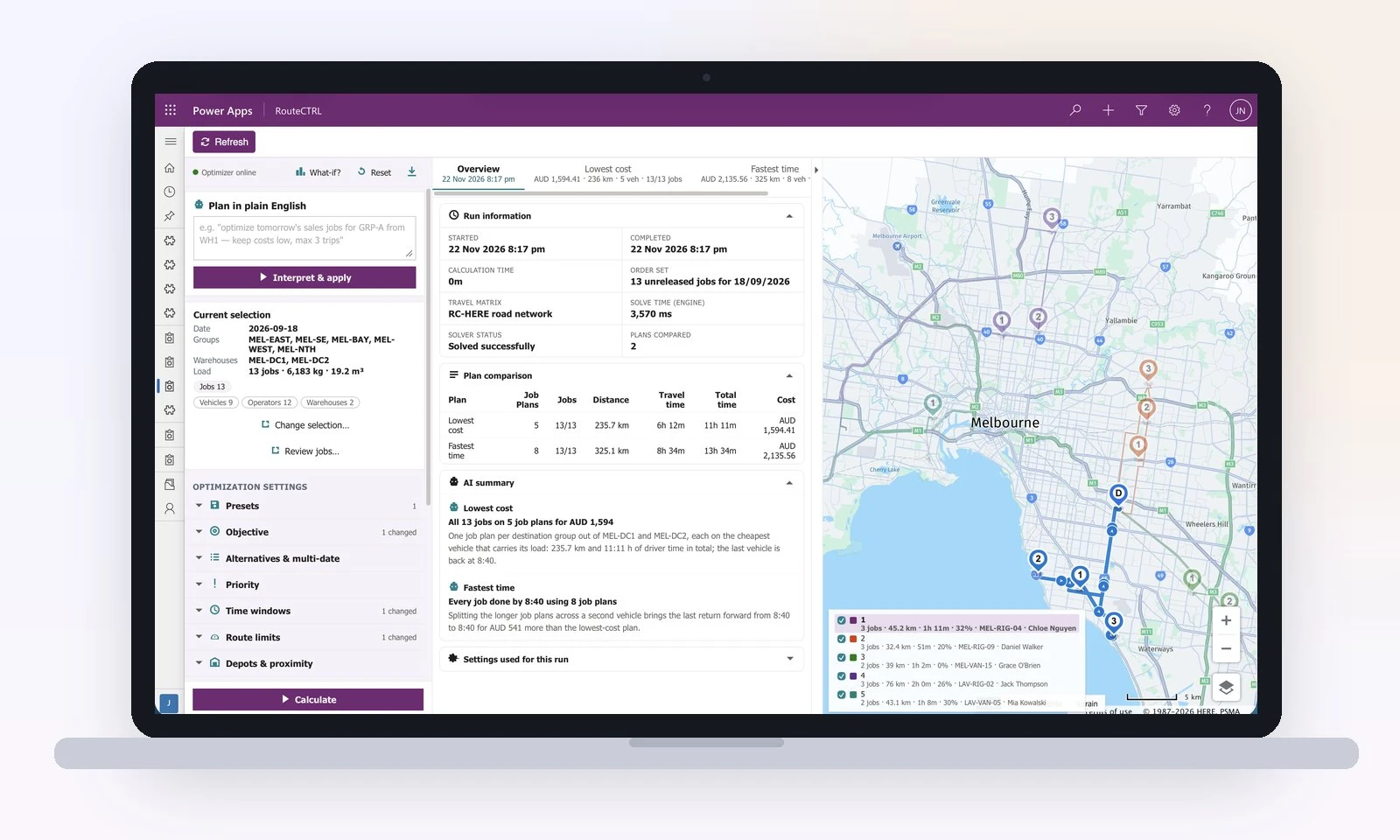
- Describe. The planner types the request in the AI Planning Assistant, for example "plan tomorrow's deliveries from the main warehouse, sales and transfer orders only, keep costs low".
- Confirm the selection. The assistant translates the request into a structured selection (date, warehouse, order type, destination group) and shows the matching orders. The planner confirms or adjusts it before anything is calculated.
- Calculate. The Optimizer builds routes for the available vehicles, trailers and operators and returns options built on goals such as Shortest distance, Fastest time, Lowest cost, Fewest vehicles, Balanced and Maximum profit.
- Review. Each option shows allocated and unallocated orders, route count, and estimated distance, drive time and cost, with the routes on the plan map.
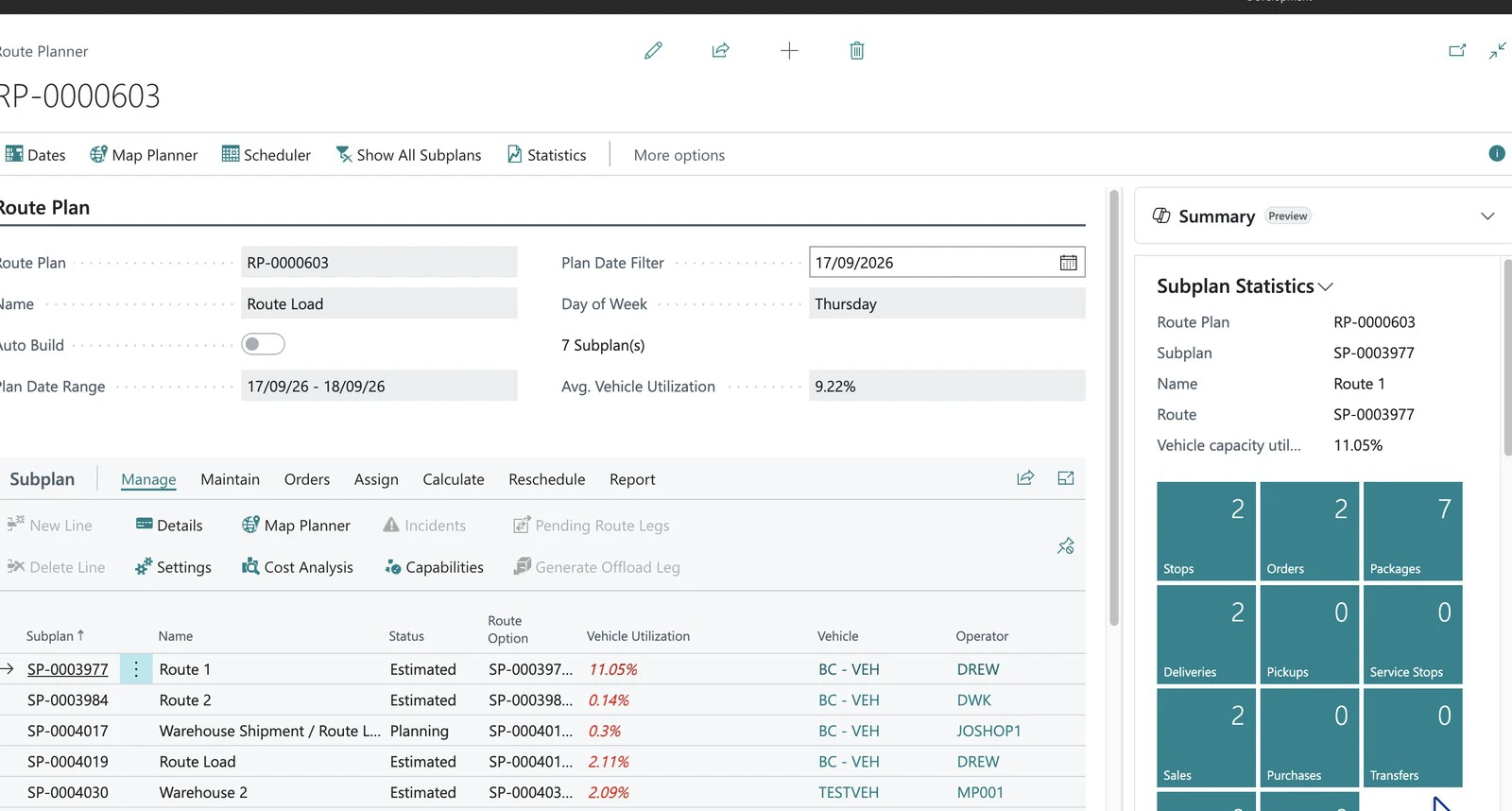
- Create and release. The planner creates subplans from the chosen option (a subplan is one vehicle's proposed run), generates Draft routes, adjusts them in the Scheduler if needed and releases them to operators on the Operator App. Release checks block a route that has no operator or vehicle, lacks valid RouteCTRL licenses, or is missing vehicle dimensions or required capabilities. Driver hours and availability can be set per warehouse to warn or block, and an over-capacity load raises a warning.
Depends on: geocoded customer addresses, service times per stop, vehicle capacities and capabilities (such as a liftgate), operator certificates, and delivery windows on the order.
What does the Optimizer take into account?
A plan can look good on a map and still break a delivery window, overload a truck or push a driver past hours-of-service limits.
The RouteCTRL Optimizer plans around delivery windows, vehicle and trailer capacity, operator skills and certificates, road restrictions and stop priorities. When hours-of-service compliance is switched on, it plans within each operator's compliance profile and adds rest stops for the required breaks, and release checks the operator's remaining hours. Your team stays responsible for meeting local driving rules. Planners can save frequently used settings as presets and plan across several days. For orders planned from promised dates on scheduled optimizer runs, delivery planning offers three choices: Recommended (a balance of service and cost), Best Service (on-time delivery first) and Cheapest Allowed (the lowest-cost option that drops no stops).
Which orders can be planned this way?
In Business Central, sales orders, purchase orders for supplier pickups, transfer orders, return orders and service orders can be planned together across the same fleet. The order types in Supply Chain Management and Sales follow each app's own records. Orders from other systems join the same plan as integrated orders through RouteCTRL Integration Sources. RouteCTRL runs in Dynamics 365 Supply Chain Management, Business Central and Sales, and Microsoft Power Platform, so the plan is built from the orders already in Dynamics 365.
How does the planner stay in control?
Automation without review carries its own risk: routes go out unchecked, and a customer call is the first sign of a problem.
The AI Planning Assistant asks the planner to confirm the order selection before the Optimizer runs. Options are compared before any route is created, and routes are released only after the release checks pass. Teams that want planning to run on a schedule can configure route automation to build and release routes under an approved policy, with a log of every run.
For the full planning workflow, see our guide to route planning in Microsoft Dynamics 365 and Power Platform.
What habits make AI route planning more accurate?
- Fix addresses before you optimize. Orders without coordinates are skipped and listed, not planned. An address typed only on the sales order is not geocoded automatically, so check those first.
- Record real service times. Use the time operators actually spend at each stop, not a default.
- Write instructions the way planners talk. Collect five real requests from your planners and test them first.
- Compare two options every time. Lowest cost and Fastest time side by side show the trade-off between transport cost and finish time for that day's orders.
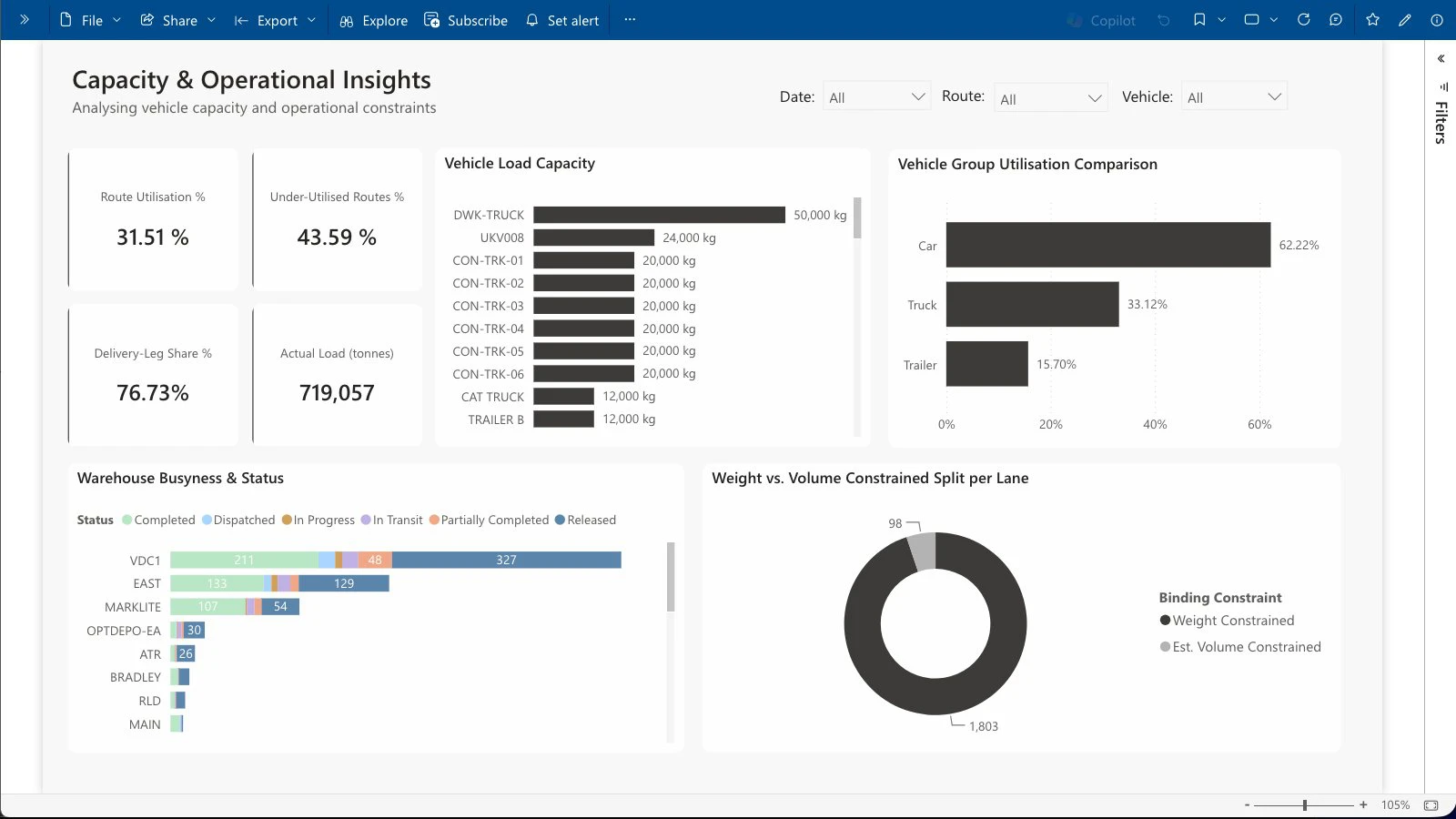
- Track unallocated orders. Orders the optimizer could not place point to missing vehicles, windows or data.
How should you run a first trial?
Start with one warehouse and one order type, run plain-English planning alongside your current method for two weeks, and compare planning time, distance, cost, on-time results and unallocated orders. A RouteCTRL demo shows the same steps on Dynamics 365 demo data.