



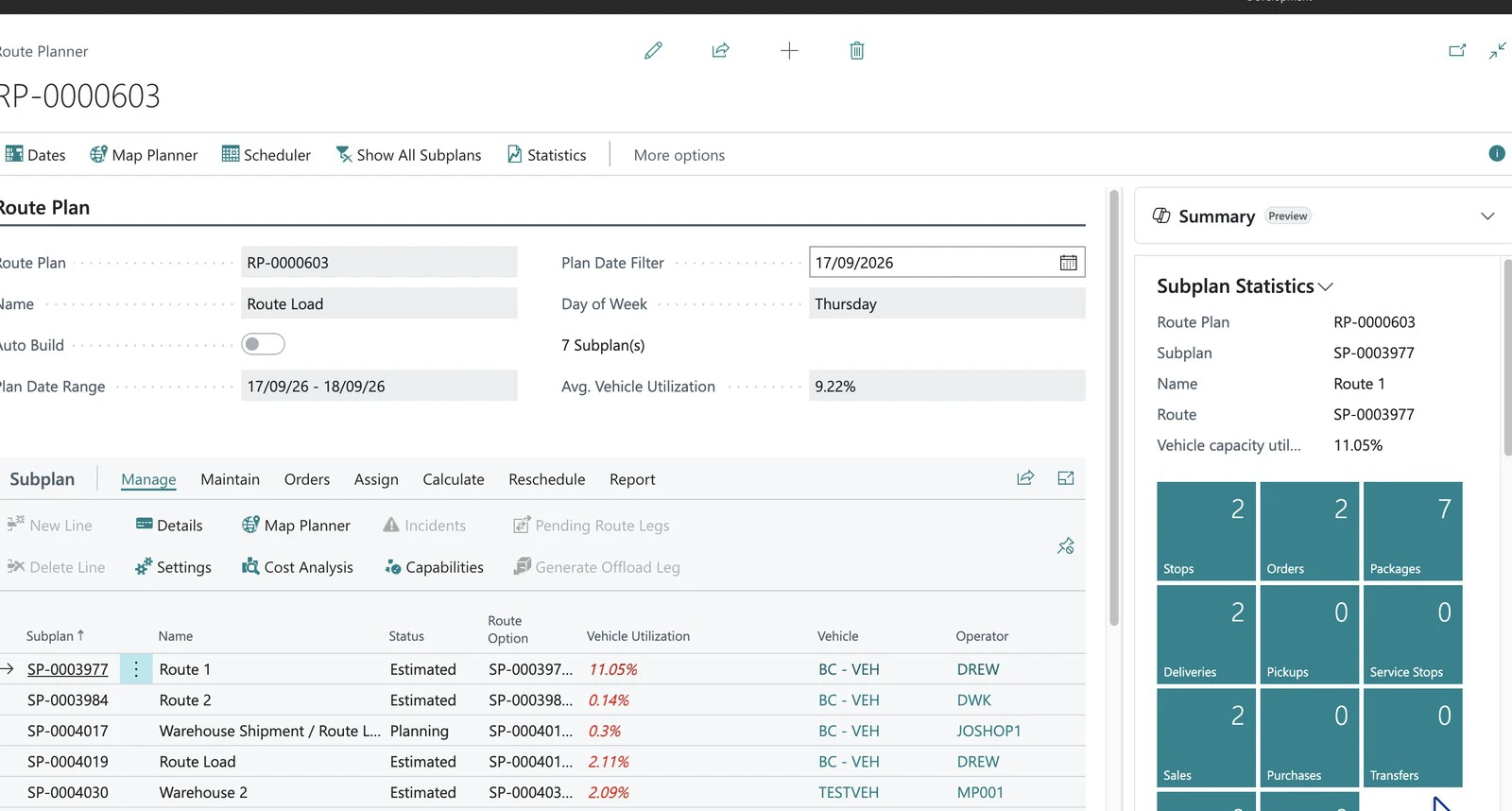

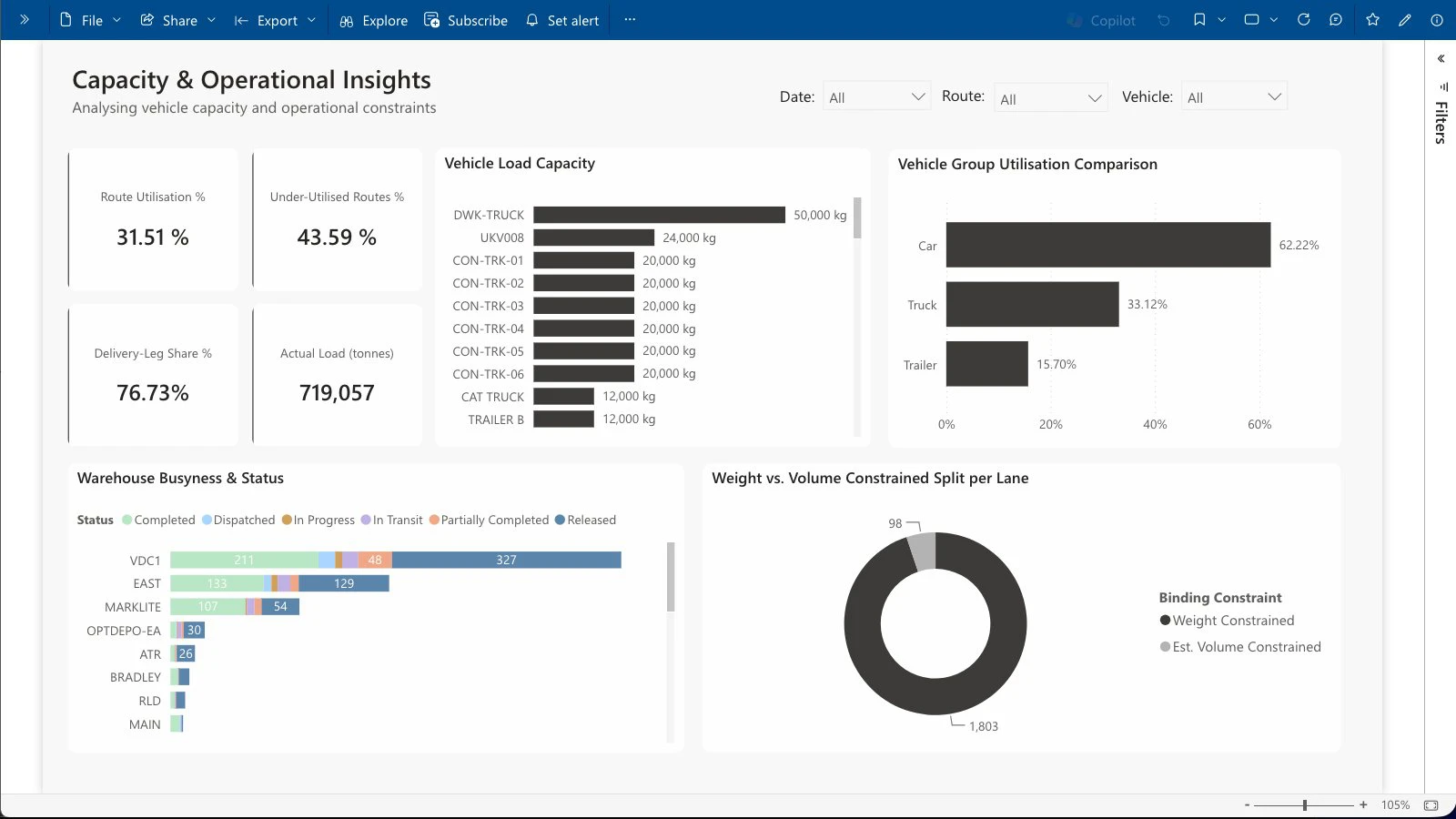



The short answer
Operators record stop outcomes and proof of delivery in the RouteCTRL Operator App: photos, signature, recipient and delivered quantities. These synchronize back to Business Central. Where automatic posting is configured, confirmed deliveries trigger shipment posting and invoicing, and the posted invoice can be emailed to the customer by rule.
What is electronic proof of delivery (ePOD) in Business Central?
Electronic proof of delivery is the digital record that a stop was completed: who received the goods, when, where, what was delivered, and the photos and signature taken at the door. In RouteCTRL, this record is stored on the stop and linked to the Business Central order, route and customer.
This is workflow automation rather than AI. For where AI fits alongside it, see our guide to AI in Microsoft Dynamics 365 for operations teams, which also covers reporting and planning.
Why does invoicing wait for proof of delivery?
On paper, proof of delivery comes back with the driver, sits in a tray and gets keyed in days later. Invoices wait for it, disputes have no photo to settle them, and short shipments can be invoiced at the ordered quantity and credited afterwards.
The sections below follow one stop from the doorstep to the ledger: proof, posting and billing.
What does the operator record at each stop?
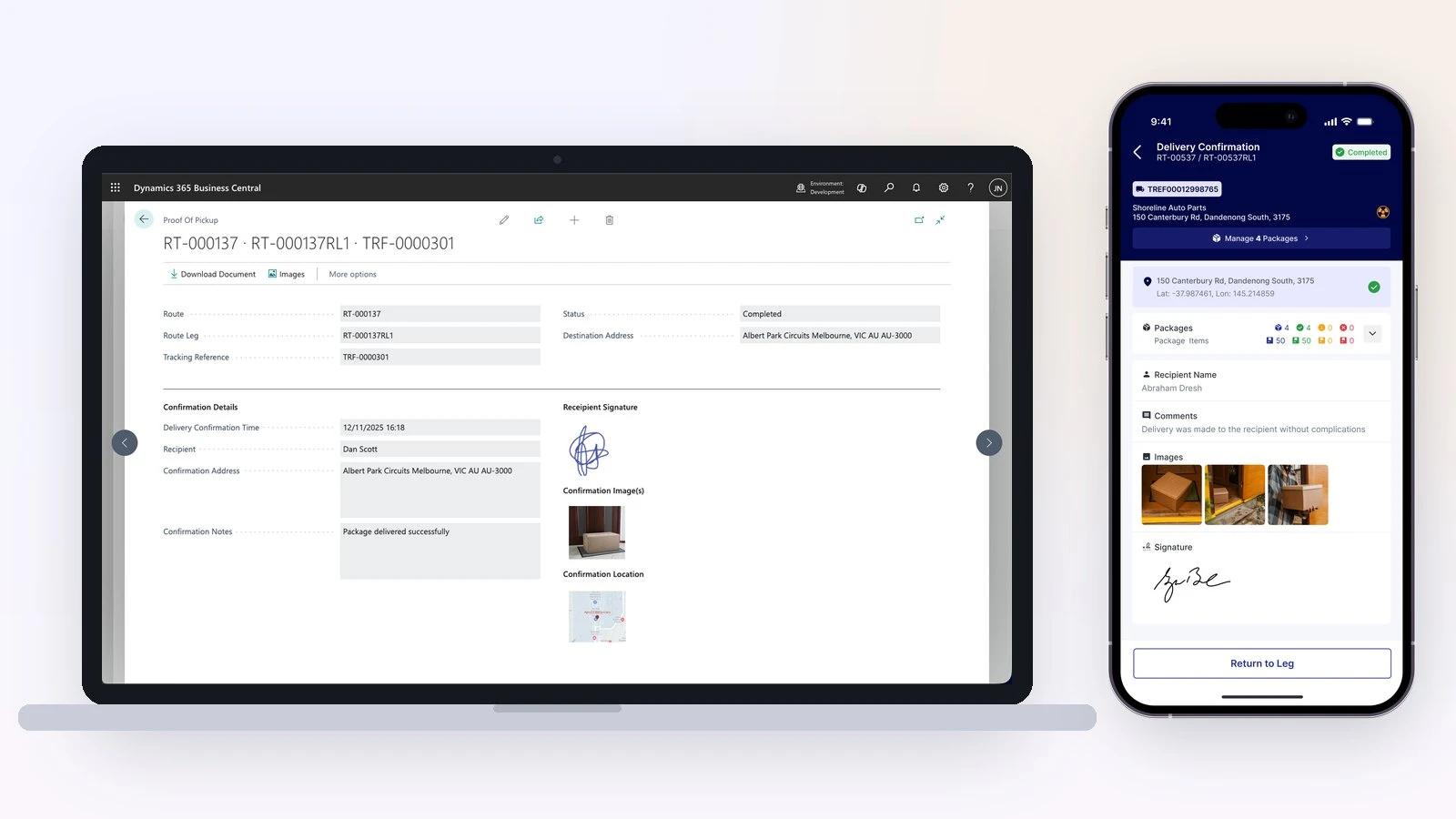
The Operator App records the delivery time and location, the recipient's name, a signature, photos, comments and the packages delivered, checked by barcode scan where required. Each warehouse decides whether photos and signatures are optional or required for each type of stop. The app works offline and synchronizes when signal returns, and Business Central shows the update after the sync.
Depends on: proof requirements set per warehouse and stop type, and package details generated from the order lines.
How does proof of delivery reach Business Central?
Customer service can't answer "where is my order?" while the delivery status sits on a driver's paperwork.
Once the app syncs a confirmed stop, the photos, signature, delivery time and quantities appear against the order in Business Central. The proof can be opened from the order, the route or the Customer Portal, and downloaded as a document to send to the customer. The Unsigned Completed Route Legs page lists delivered stops with no signature. Review it against the stops where your rules require one, and follow up the same day.
How does a confirmed delivery trigger posting and invoicing?
Business Central doesn't require proof of delivery before posting, but many teams hold invoicing until the paperwork is back, even when finance posts in batches.
RouteCTRL applies a rule per order type when a stop is confirmed: post the shipment, invoice it, email the invoice to the customer, or do nothing. Individual customers and suppliers can have their own rule. Orders can also be shipped when the route leaves, which posts the planned quantity, and invoiced when the delivery is confirmed. Transfer orders have no invoice step; they post a shipment and a receipt, or a single direct transfer, depending on setup. If posting fails, RouteCTRL either raises an incident for someone to fix or holds the stop update and tries again on the next update, depending on the setting.
Depends on: posting setup and number series in Business Central, customer and supplier posting rules, and invoice email settings.
What happens with partial deliveries, returns and payments?
Partial deliveries cause the most rework. The invoice says 50 units, the customer received 48, and the difference turns into a credit note and a phone call.
When the shipment posts at stop completion (Ship on Leg Completion with Adjust to Confirmed), only the delivered quantity is shipped. If the shipment was already posted when the route left, the difference has to be corrected in Business Central, and invoicing still bills only what was delivered. When the operator submits a return in the app, RouteCTRL can create a return order (Auto Create Return Orders); the return receipt and credit memo are then posted in Business Central as usual. Card, cash and online payments taken at the door are recorded in Business Central with the amount, method and reference, for the accounts team to post.
Which apps does this work in?
This article describes Business Central. RouteCTRL also runs in Dynamics 365 Supply Chain Management, Sales and Microsoft Power Platform. For how routes are built before delivery, see how to plan delivery routes in Dynamics 365 with plain-English instructions.
What should any proof-of-delivery process include?
- Set proof rules by customer type. For example, require a photo and a signature for high-value or regulated goods, and neither for routine replenishment.
- Decide who invoices automatically. Start with customers whose orders rarely change at the door.
- Review exceptions daily. Check unsigned stops where a signature is required, failed postings and short deliveries every morning.
- Keep proof retrievable. Customer service should find a POD from the order in under a minute.
- Test posting rules in a sandbox. Run a week of real orders through the rules before production.
How do you roll this out safely?
Pick one warehouse, set the proof requirements for each stop type there, and turn on automatic shipment posting before automatic invoicing. Once the exception list stays short, add invoicing for your most stable customers. A RouteCTRL demo walks through the full flow in Business Central.